
How to create a CV on your phone (the easy, professional way)
Build a professional CV on your phone without formatting errors. Discover the best mobile-friendly methods to ensure your application stands out and beats ATS.

Our customers have been hired by : *Foot Note
Your phone allows you to build, edit, and send professional job applications from anywhere using mobile-friendly CV builders or programmes like the MyPerfectCV app. Good mobile CV tools simplify formatting, provide pre-written content, and help you create ATS-friendly applications on smaller screens.
Quick outline:
- Mobile CV builders make it easier to create professional CVs without needing advanced formatting skills or desktop software.
- Save your CV as a PDF before sending it to employers to preserve formatting across devices.
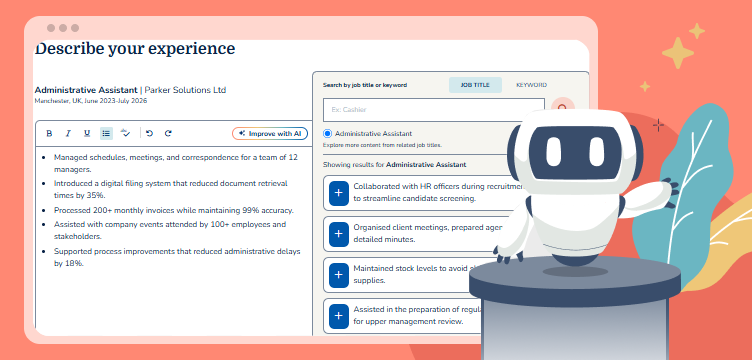
- MyPerfectCV mobile tools include AI suggestions, pre-written content, and ATS-friendly designs to speed up the writing process.
- Proofread carefully on both mobile and desktop views if possible, as formatting and spacing can appear differently across devices.
Smarter writing with built-in AI
Get instant, high-quality text suggestions tailored to your specific industry.
The easiest way to create a CV on your phone
If you want your CV to look professional, stay neatly formatted and pass ATS checks, the easiest method is to use a tool designed specifically for CV creation. Typing into a blank document on your phone can lead to spacing issues, uneven alignment and layouts that look different on every device. A dedicated CV app removes these problems by handling the structure for you while you focus on your content.
A good mobile CV tool will give you:
- ATS-friendly templates that stay consistent on all devices.
- Guided sections for your profile, experience, skills and education.
- Simple customisation options for layout and colour without risking formatting errors.
- A clean preview so you can see exactly how your CV will look before saving.
- Quick downloads in recruiter-friendly formats, such as PDF.
Using a purpose-built tool also makes it easier to create multiple versions of your CV for different roles, which is one of the fastest ways to tailor your application and improve your chances of hearing back from recruiters.
Alternative ways to create a CV on your phone
Using a dedicated CV app is not the only way to create a CV on your phone. Many people still rely on simple tools or browser-based options, especially when they want to make quick edits or draft ideas on the go. Each method has its strengths, but it also comes with limitations that can affect formatting, clarity, and ATS performance.
Here are the main alternatives:
1. Typing your CV in Google Docs or Microsoft Word
This works for basic edits or rough drafts, but formatting on a small screen can be difficult. Line breaks, spacing and alignment often shift when the file is opened on another device, so the final layout is not always reliable.
2. Using a mobile-friendly CV builder in your browser
A stronger option if you want a cleaner layout and guided sections. Your experience will depend on how well the site functions on mobile, but it generally offers more structure and fewer formatting issues than typing everything manually.
Step-by-step: how to make a CV on your phone
Creating a CV on your phone is simple once you follow a clear, structured process. These steps work whether you are starting from scratch or updating an existing CV for a new role.
1. Open your chosen CV tool on your phone
Start by launching the app or mobile site you plan to use. Make sure your connection is stable so your work is saved as you go. If you are using a browser-based builder, keep your screen in portrait mode for easier typing and navigation.
2. Choose a clean, professional CV template
Select a CV template that is easy to read on a small screen and still looks sharp on a laptop. A simple, well-structured design works best, especially for ATS. Avoid heavy graphics or unusual fonts, which can shift or become unclear on mobile.
3. Add your details section by section
Work through each part of your CV carefully to keep everything consistent. Include:
- Contact details: Keep this simple and up to date. Include your name, phone number, email address and general location (such as “Bristol” or “Greater Manchester”). There’s no need to add your full address or a photo.
- CV profile: Write a short paragraph that introduces who you are, what you offer and the type of role you are aiming for. Aim for three to four sentences that highlight your strengths without repeating your work history. On mobile, shorter sentences help keep this section clear.
- Work experience: List your roles starting with the most recent. Include your last three to four positions, depending on how long you have been working. For your most recent roles, aim for around six to eight bullet points, as these are the roles employers care about most. Older positions can usually be summarised in three to four bullets. Use short, clear points that are easy to scan on a phone and focus on achievements with impact, such as improved results, solved problems or valuable contributions to a team.
- Key skills: Choose skills that match the role you are applying for. Mix core competencies (like communication or teamwork) with role-specific abilities (such as software knowledge or customer service skills). Keeping this section concise helps recruiters identify your strengths quickly.
- Education and training: Include your qualifications, relevant courses and any certificates linked to the role. If you are early in your career, you can also add subjects or grades. If you have more experience, keep this section shorter and let your work history take the lead.
4. Tailor your CV for specific roles
Adjust your personal profile, key skills and a few bullet points in your work history to match each job you apply for. Mobile tools make this quick, and even small tweaks can improve your chances of being shortlisted.
5. Preview and proofread your CV
Before downloading, check the spacing, alignment and line breaks. Switch between mobile and PDF preview to see exactly how the final document will appear to recruiters. Reading your CV aloud or zooming in can help you catch small errors.
6. Save, download or share your CV
Download your CV as a PDF, as this format keeps your layout consistent across all devices. Use a clear file name such as “Firstname-Lastname-CV” and save a copy somewhere accessible, such as cloud storage or your CV account, so you can update it easily later.
How to make a CV on your phone for free
You can create a CV on your phone without spending anything, especially if you are just starting out or making quick updates. The key is choosing a method that keeps your layout clean and avoids formatting problems when your CV is opened on another device.
1. Use Google Docs or Microsoft Word for basic drafting
Both apps are free or low-cost and easy to use on a phone. They are helpful for:
- Writing or updating your text
- Copying over information from old CVs
- Making quick changes while you are on the go
However, these tools have limitations on mobile. Formatting on a small screen can shift unexpectedly, and your CV may not retain its layout when downloaded or emailed. This can affect readability and ATS performance.
2. Use Canva to create a simple CV design
Canva works on mobile and offers a range of free CV templates you can edit directly from your phone. It is a good option if you want a basic design without starting from scratch, and the drag-and-drop interface is easier to manage than typing into a blank document.
Canva is helpful for:
- Choosing a simple template
- Adding your text in a structured layout
- Making quick visual tweaks, such as colour changes or icons
However, Canva’s templates are often more design-led than CV-focused. Some include elements that may not display consistently across devices or may not be ideal for ATS screening. For best results, choose cleaner, more traditional layouts that keep your content clear.
Check out our recommended Canva CV templates.
When should you consider upgrading?
If you want:
- A professional, ATS-friendly layout
- A wider choice of templates
- More customisation options
- Unlimited downloads or multiple versions of your CV
…then moving beyond the free tools can help you create a more job-ready CV. Even minor improvements in design and clarity can make a noticeable difference to how your CV is received by recruiters.
Mobile CV tips
When you create a CV on your phone, the goal is to make it easy to edit on a small screen while still looking professional on a laptop or desktop. These tips help you avoid common mobile mistakes and keep your CV clear and consistent.
Keep your CV to a manageable length
Aim for 1-2 pages, depending on your experience. On a phone, longer CVs are harder to work on and easier to lose track of. Keeping things focused makes it simpler to edit, update and check your content properly before you send it. Generally, recruiters expect a 1-2 page CV.
Use bullet points to control layout
Bullet points are not just easier for recruiters to scan, they are also easier to move, edit and reorder on a phone. They reduce the risk of big paragraphs becoming jumbled when you switch devices or export your CV as a PDF.
Choose a simple, stable design
On mobile, complex templates are more likely to shift when you edit them. Choose a clean CV layout with clear headings and straightforward sections. This makes it easier to keep everything aligned when you add or remove text.
Always check the PDF on a larger screen if you can
Once you have finished editing on your phone, download your CV as a PDF and, if possible, open it on a laptop or tablet. This is often how a recruiter will see it, so it is the best way to catch spacing issues, odd line breaks or misaligned sections.
Use clear filenames and a consistent format
Save your CV as a PDF and use a professional filename such as “Firstname-Lastname-CV”. This keeps your presentation tidy and ensures your layout stays stable.
FAQs about creating a CV on your phone
How do I make a CV on my phone?
You can create a CV on your phone by using a mobile-friendly CV builder, a dedicated CV app or a simple editing tool such as Google Docs. A builder or app gives you structured sections, templates and a consistent layout, which reduces formatting issues and helps your CV stay professional across devices.
Is it OK to create a CV on my phone?
Yes. Many job seekers build or update their CVs on their phones because it is quick and convenient. The key is to use a tool that keeps your formatting stable. Just make sure to check how your CV looks on a desktop or laptop, as that is most likely how a recruiter will view it.
What is the easiest way to make a CV on my phone?
The easiest option is to use a tool designed for CV creation. This avoids the spacing and alignment issues that often happen when typing into a blank document on a phone. A good CV builder or app handles the layout for you so you can focus on your content.
How do I make a CV on an Android or iPhone?
The process is the same on both devices. Open your preferred CV tool, choose a template, add your information section by section and export your CV as a PDF. Most builders and apps work smoothly on both Android and iOS.
Can I create a CV on my phone for free?
Yes. You can use tools such as Google Docs for basic drafting, or Canva for simple designs. Just keep in mind that free tools offer limited formatting control, and your layout may shift when opened on another device. A dedicated CV builder usually keeps things more consistent.
Can I type my CV directly on my phone?
You can, but typing everything manually on a small screen increases the chance of errors or formatting issues. Many people prefer drafting key points in a notes app first, then adding them into a CV builder for cleaner structure and easier editing.
Andrew Smith
Senior Content Writer
Meet Andrew Smith – an accomplished English copywriter with a strong background in SEO optimisation. Passionate about producing engaging content, Andrew has written across various fields, including health and fitness, security, travel, and tourism.






Give your mobile CV a recruiter-ready finish
Creating a CV on your phone is one of the quickest ways to update your details or apply for roles on the go. With the right approach, you can build a professional CV that looks just as good as one created on a laptop.
If you prefer a smoother experience, our dedicated CV app can guide your layout, keep everything aligned and make tailoring your CV for different roles much easier. Every template we offer is built to be ATS friendly and easy for AI screening tools to read, helping your CV reach the right people without formatting issues getting in the way.
*The names and logos of the companies referred to above are all trademarks of their respective holders. Unless specifically stated otherwise, such references are not intended to imply any affiliation or association with myperfectCV.